
Texting: texts to your numbers become jobs, with any texting provider
Everything about texting in Operacora, for people new to it: choosing a number type (10DLC, toll-free, short code), registration, connecting Telnyx, Twilio or Bandwidth step by step, importing numbers, troubleshooting, costs and privacy.
On this page
- Which kind of number?
- The provider's words, explained
- Step by step: add your texting account
- The four steps of the checklist
- What Set up automatically does
- What Import does
- Your numbers, every provider in one list
- Where to find each key
- Troubleshooting
- Costs and limits
- Privacy: what is kept from a text
- What the app never does
Staff text a problem to your building's number, and it becomes a job in that building's Main Inbox. No app to install and no sign-in for the person texting. This page explains everything you need, from zero: what kind of number to get, how to connect your texting provider, what each step and status means, and what to do when something does not work.
Operacora works with three texting providers (the companies that rent you phone numbers and carry the texts): Telnyx, Twilio and Bandwidth. You can use one, or several at once, such as two Telnyx accounts, or a Twilio and a Telnyx account. Every account gets the same four setup steps, and all numbers are in one list.
The short version. 1. Open an account with a texting provider and get a number for each building. 2. In Operacora, Settings › Connections › Add connection, pick the provider and paste its keys. 3. In the Texting section, press Set up automatically, then Import, and pick a building for each number. 4. Send a test text. That is all that receiving needs. Registration (below) is only needed before you send texts, which Operacora does not do today.
Which kind of number?#
In the US and Canada there are three kinds of numbers that can receive texts from businesses' contacts:
| Kind | What it looks like | Good for | To send texts |
|---|---|---|---|
| Local number (10DLC) | An ordinary 10-digit number with a local area code, such as +1 555-555-0101. "10DLC" means "10-digit long code". | One number per building that people recognize as local. The usual choice for Operacora. | 10DLC registration: a brand (your organization) and a campaign (what you text about). |
| Toll-free number | An 800, 833, 844, 855, 866, 877 or 888 number. | One number for a whole organization across many areas, or when you prefer not to use a local number. | Toll-free verification, per number. |
| Short code | A 5 or 6 digit number, such as 55501. | Very high volumes of texts (marketing, alerts to many thousands of people). | A separate short code application; slow and expensive. Not needed for Operacora. |
Our advice: one local number per building. If you already have a toll-free number your staff know, that works too. You can mix both kinds in one list.
Receiving needs nothing extra; sending needs registration#
Operacora only receives texts: it never texts anyone back. Receiving texts on your number needs no registration beyond opening the provider account itself. US carriers' registration rules are about texts a business sends. If one day you want to send texts (for example confirmations, which are not built), register first:
- 10DLC registration (local numbers). You register a brand, which is your organization's legal identity (legal name, EIN or tax ID, address, website), and then a campaign, which describes what you send: the use case (for example "customer care" or "account notifications"), sample messages, and how people agree to receive texts (opt-in). The provider submits both to The Campaign Registry and the carriers. Then you link your numbers to the campaign. Organizations without a tax ID can sometimes use a "sole proprietor" brand with tighter limits.
- Toll-free verification (toll-free numbers). You submit one form per number (or per group of numbers) with your business details, use case, sample messages and opt-in. Carriers block texts sent from unverified toll-free numbers.
- Short codes have their own application, usually months long. Not needed here.
| Provider | 10DLC | Toll-free verification |
|---|---|---|
| Telnyx | In the Telnyx portal's 10DLC section (brands, then campaigns). Guide: Telnyx 10DLC | Telnyx 10DLC and toll-free compliance guide |
| Twilio | In the Twilio Console's messaging regulatory compliance section (A2P 10DLC). Guide: Twilio A2P 10DLC | Twilio toll-free verification |
| Bandwidth | In the Bandwidth App's campaign management. Guide: Bandwidth 10DLC campaigns | Bandwidth toll-free verification guide |
How long and how much. Brand registration is often done within minutes to a few days; campaign review commonly takes from a few days to a few weeks; toll-free verification usually takes several business days and sometimes longer. There are one-time brand and vetting fees, a monthly campaign fee, and small per-text carrier fees on texts you send. Prices and review times change often: check your provider for current prices and times before you start.
STOP and HELP#
People can text STOP (or similar words such as UNSUBSCRIBE) to stop receiving texts from a number, START to allow them again, and HELP for information. Carriers require providers to honor them, and most providers answer these words automatically and block your outgoing texts to that person; you can usually change the automatic answers in the provider's settings (Telnyx: the messaging profile; Twilio: Messaging Service opt-out management, or Twilio's default opt-out handling; Bandwidth: your campaign's settings). Those answers come from your provider, not from Operacora.
Because Operacora takes every text as a report, a text that says only "STOP" or "HELP" still becomes a job like any other text (one text is always one job, and nothing is guessed). Delete it if it is not a real request.
The provider's words, explained#
Each provider has a place where you say "send this number's incoming texts to this web address". Operacora sets it for you; this is what it is called:
| Provider | Where incoming texts are sent from | What it is |
|---|---|---|
| Telnyx | Messaging profile | A group of settings for messaging. Each number is assigned to one messaging profile, and the profile's webhook URL receives the texts of all its numbers. |
| Twilio | The number itself, or a Messaging Service | Each number has its own incoming address ("A message comes in"). A number you put in a Messaging Service (a group of numbers with shared settings) uses the service's incoming address instead, unless the service is set to use each number's own. |
| Bandwidth | Messaging application, through a Location | A messaging application holds the inbound callback URL. Numbers belong to a Location (also called a SIP peer), and each Location is linked to one messaging application. |
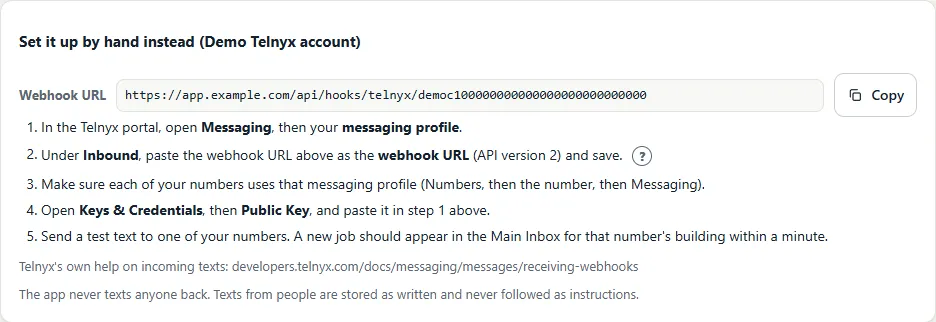
A webhook is simply a private web address: when a text arrives, the provider sends it there. Each of your texting accounts gets its own private webhook address in Operacora, shown under Set it up by hand instead.
Step by step: add your texting account#
- Open an account with the provider and get your numbers (one per building is the usual choice). See where to find each key below.
- In Operacora, open Settings › Connections and press Add connection. Type the provider's name in Search providers, or find it under Texting & calling, and pick it.
- Give it a name, such as "Office texts" or "Boys' building Telnyx", and paste what it asks for. Press Save, then Test.
- Press Set up incoming texts and import numbers. You land on the Texting checklist for this account.
Everything about the Add connection list, statuses and Use this one is on Connections.
The four steps of the checklist#
Each texting account has its own checklist in the Texting section of Settings › Connections, with a small label for its provider. A green tick means the step is done.
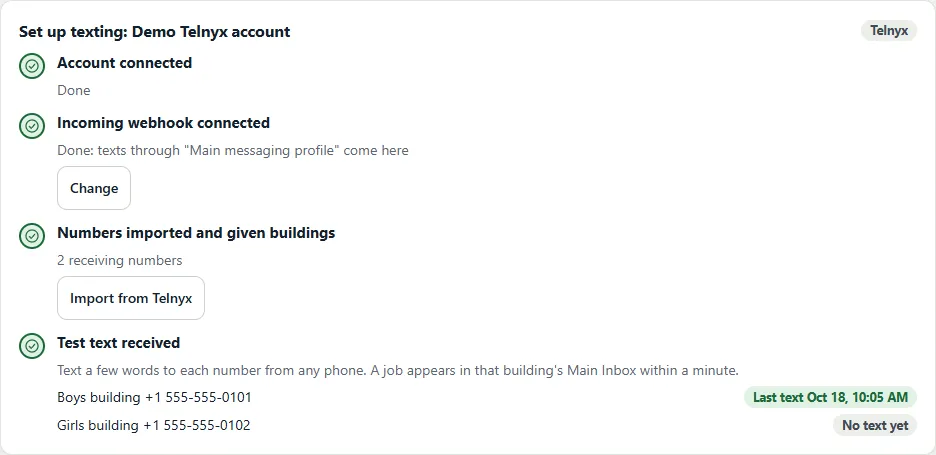
| Step | Done when | If it is not done |
|---|---|---|
| 1. Account connected | The account is saved, the provider did not refuse it, and the one extra key incoming texts need is saved: Telnyx's public key, or Twilio's Auth Token. | The step shows a box to paste the missing key. If it says the provider refused the credentials, fix them under Your connections (Edit) and press Test. |
| 2. Incoming webhook connected | Set up automatically pointed your provider at this account's webhook, and says through what ("Main messaging profile", "2 numbers and services", "Office texts"). | Press Set up automatically. If it cannot reach the provider, use Set it up by hand instead. |
| 3. Numbers imported and given buildings | At least one number receives texts, and every number that receives texts has a building. | Press Import from and the provider's name, or Add another number. "Still need a building" means a number receives texts but has All buildings: edit it and pick one. |
| 4. Test text received | A text to one of this account's numbers became a job. Each number shows "Last text" and the time, or "No text yet". | Text a few words to each number from any phone and wait a minute. See troubleshooting if nothing appears. |
If the account is turned off under Your connections, the checklist says so: texts to its numbers are refused until you turn it on again.
What Set up automatically does#
Press Set up automatically (or Change) in step 2. Operacora asks your provider, with your own saved keys, what can send texts here, and shows the list. You pick, press Connect, and Operacora changes only the incoming-texts address (and, for Bandwidth, its user name and password). Nothing else at the provider changes.
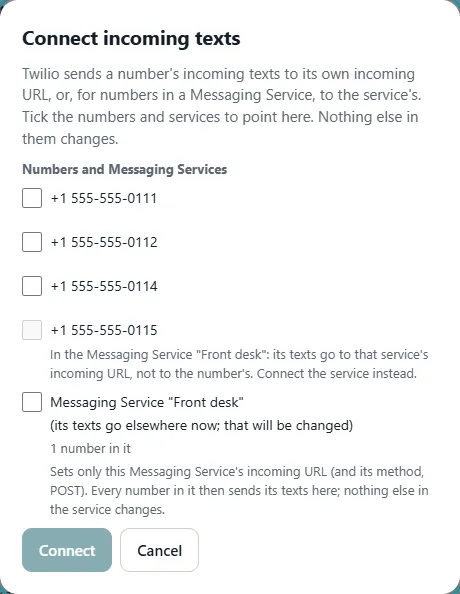
- Telnyx: the list shows your messaging profiles. "(already connected)" means it already sends texts here; "(its texts go elsewhere now; that will be changed)" means it sends them to another address today. Pick the profile your numbers use, or Make a new profile named "Operacora" (it allows US and Canada). Operacora sets the profile's webhook URL (API version 2) to your account's webhook and clears its failover URL.
- Twilio: the list shows your numbers and Messaging Services; tick as many as you like. For a number, Operacora sets "A message comes in" to your webhook, HTTP POST. A number inside a Messaging Service cannot be ticked: its texts go to the service, so tick the service instead; Operacora then sets only the service's incoming Request URL and method (POST).
- Bandwidth: the list shows the messaging application whose ID you saved. Operacora sets its inbound callback URL and a new random user name and password (kept encrypted, checked on every text). Status callbacks and all other settings stay as they were. Afterwards, the dialog reminds you that your numbers reach the application through their Location.
What Import does#
Press Import from and the provider's name (in step 3, or under the numbers list). Operacora lists the numbers in that account (up to 1,000). Tick the ones you want and pick a building for each. Numbers already in your list are ticked and greyed out with "Already added".
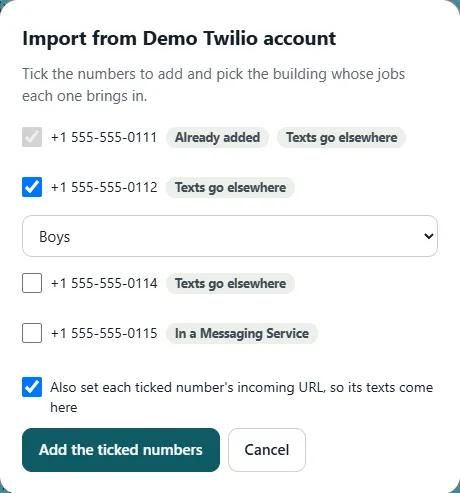
- Telnyx: each number shows "Connected" (it is on the connected messaging profile) or "Not on the connected profile". Keep Also move the ticked numbers onto the profile ticked: Operacora moves them onto the profile you connected in step 2.
- Twilio: each number shows "Texts come here", "Texts go elsewhere" or "In a Messaging Service". Keep Also set each ticked number's incoming URL ticked: Operacora points each number at your webhook. Numbers in a Messaging Service are added, with a note to connect the service in step 2.
- Bandwidth: the list shows your in-service numbers. Operacora does not change which application a number uses (that is the number's Location); the dialog reminds you to check it in the Bandwidth App.
A number that receives texts gets Texts in; a number given All buildings gets Texts out only (it cannot receive, so jobs never land in the wrong building). After Add the ticked numbers, each number shows its own result: "Added and connected", "Added", or what to do.
Your numbers, every provider in one list#
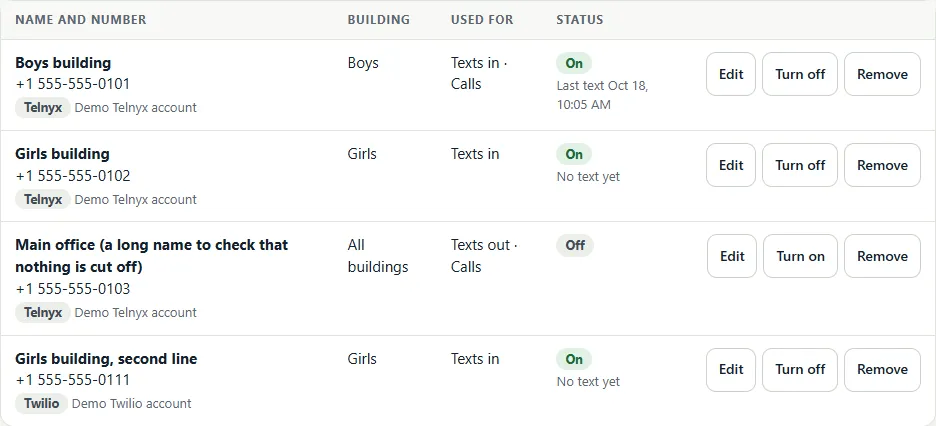
| Setting | What it means |
|---|---|
| Name | So you can tell them apart, such as "Boys' building", "Girls' building" or "Main office". |
| Number | With the country code, such as +1 555-555-0123. Each number can be in your list once. |
| Texting account | The provider account the number belongs to; its provider is shown as a small label. An account can't be removed while numbers still use it. |
| Building | Texts to the number become jobs in this building's Main Inbox. A number that receives texts needs one building. All buildings is for numbers that only send texts or take calls; "Choose a building to receive texts" means it is set to receive but has none. |
| Used for | Texts in: texts become jobs. Texts out: the app may text from it later; it sends nothing today. Calls: stored for later; the app does not answer calls yet. |
| Jobs go to | The building's Main Inbox (usual), or one manager's personal queue. |
| Status | On or Off (turn a number off to pause it without losing its settings), and for receiving numbers "Last text" with the time, or "No text yet". |
If the building has a building worker set to Auto (Job order), a text for that building goes straight to that worker, exactly like a problem reported from the phone app.
Where to find each key#
Telnyx#
- API key: Telnyx portal, Keys & Credentials › API Keys, Create API Key. It starts with
KEY. - Public key (checks that incoming texts really come from Telnyx): Keys & Credentials › Public Key. Telnyx does not hand it out through its API, so step 1 asks you to paste it once. It is about 44 characters and ends with
=. - Numbers: Numbers › My Numbers. Messaging profiles: Messaging.
By hand (open Set it up by hand instead, which shows your webhook URL with a Copy button):
- In the Telnyx portal, open Messaging and your messaging profile. Under Inbound, paste the webhook URL as the webhook URL (API version 2), and save.
- Make sure each of your numbers uses that messaging profile (Numbers, the number, Messaging).
Twilio#
- Account SID and Auth Token: Twilio Console home page, the Account Info panel (press Show next to the Auth Token). The SID starts with
AC. - API Key (optional): API keys & tokens (under Account, or Admin › Account management in newer consoles), Create API key (Standard). Save its SID (starts with
SK) and secret; the secret is shown once. Operacora then uses the API Key to list and set up numbers. - Numbers: Phone Numbers › Manage › Active numbers. Messaging Services: Messaging › Services.
Why the Auth Token is needed. Twilio signs every incoming text with your account's Auth Token, never with an API Key. So even if you use an API Key, Operacora needs the Auth Token to check that incoming texts really come from your Twilio account; until it is saved, incoming texts are refused, and step 1 asks for it. If you change ("rotate") the Auth Token in Twilio, save the new one in Operacora too.
By hand:
- In the Twilio Console, open Phone Numbers › Manage › Active numbers and the number.
- Under Messaging Configuration, for A message comes in choose Webhook, paste the webhook URL exactly as copied, choose HTTP POST, and save.
- If the number is in a Messaging Service: open Messaging › Services, the service, Integration. Under Incoming Messages choose Send a webhook and paste the same URL as the Request URL (HTTP POST). Save.
Bandwidth#
- Account ID: in the Bandwidth App, shown with your account name (the account menu or the Account page).
- API client ID and secret: Account › API Credentials › Create. Give it this account and the roles for messaging, numbers and applications. Copy the client secret straight away: Bandwidth shows it once. (Bandwidth's older "API users" with a user name and password stop working on 2 December 2026, so Operacora uses API credentials.) Guide: Bandwidth API credentials.
- Messaging application ID: Applications, your messaging application (type Messaging). Make one there if you have none.
- Locations: Locations. Each number belongs to a Location, and each Location's messaging setting names one messaging application.
By hand:
- In the Bandwidth App, open Applications and your messaging application.
- Paste the webhook URL as the inbound callback URL.
- For the inbound callback's authentication, enter a User ID and Password made by Operacora: in Set it up by hand instead, press Make a user name and password. They are shown only once, with Copy buttons; any made before stop working at once. Save the application.
- Open Locations and make sure each number's Location uses this messaging application.
Troubleshooting#
A text was sent but no job appears#
- Look at the checklist: are all four steps green except the last? If step 1 or 2 is not done, do it first.
- Look at the number in the list: is it On, used for Texts in, with a building, and under the right texting account? Is the account itself on (Your connections)?
- Make sure the number's texts go to Operacora: Telnyx: the number is on the connected messaging profile (Import shows "Connected"). Twilio: Import shows "Texts come here"; a number "In a Messaging Service" needs the service connected. Bandwidth: the number's Location uses the connected messaging application.
- Press Change in step 2 and connect again: it does no harm, and fixes an address someone changed at the provider.
- Check the provider's own message log: Telnyx: the portal's message records and webhook debugging; Twilio: Monitor › Logs (messaging logs and errors such as 11200, "the webhook could not be reached"); Bandwidth: the message search in the Bandwidth App. If the provider never received the text, the problem is before Operacora (for example the sender's carrier).
The provider's log shows "401" or a signature failure#
Operacora refused the text because it could not prove it came from your account. Telnyx: paste the public key again (step 1), from the same Telnyx account. Twilio: the Auth Token was changed, or not saved (save it again), or the URL at Twilio was changed in any way (connect again, or paste it exactly as copied). Bandwidth: the application's user name and password are not the ones Operacora made (connect again, or make new ones and paste both). A texting account that is turned off also answers 401.
The provider's log shows "422"#
Operacora received the text but the number it was sent to is not one of this account's receiving numbers: it is missing from your list, off, not used for Texts in, has no building, or belongs to another texting account. Fix the number in the list.
A number is on the wrong profile, service or application#
Telnyx: Import again with Also move the ticked numbers onto the profile, or in the portal Numbers, the number, Messaging. Twilio: connect the number (or its Messaging Service) in step 2. Bandwidth: change the number's Location, or its Location's application, in the Bandwidth App.
Pictures (MMS) are missing#
Operacora keeps up to 10 pictures per text, each up to 5 MB, and only real pictures (JPEG, PNG, WebP, HEIC); videos, files and anything larger are left out, and the text still becomes a job. Carriers often shrink pictures on the way. A picture the provider could not hand over in time is left out too. Group texts and texts with only a picture work like any other.
Costs and limits#
- Your provider bills you directly: usually a monthly fee per number, a small fee per text received (more for picture messages), and, if you send, registration fees and per-text carrier fees. Operacora adds nothing. Check your provider for current prices.
- Up to 100 numbers per organization; up to 20 texting accounts of one provider; Import lists up to 1,000 numbers per account.
- Each text: up to 2,000 characters are kept as the description, and up to 10 pictures of 5 MB each.
- The app sends nothing, so it costs nothing in outgoing texts.
Privacy: what is kept from a text#
- Kept, as a job: the sender's phone number (shown as the contact), the text (tidied: invisible control characters removed, at most 2,000 characters), the pictures, the number it was sent to (which building), when it arrived, and the provider's message id (only to recognize a repeated delivery).
- Not kept: the rest of what the provider sends (carrier details and the like), and nothing about the text is written to logs.
- The sender's number is never used to look anyone up or to guess a name, and nobody is texted back.
- If your organization has an AI connection, the text is sent to that AI provider to suggest a short title and tags (see AI); the original text is kept unchanged.
- Who can see the job follows the normal rules for jobs; pictures are protected the same way as photos taken in the app.
Safe by design, with every provider. Each account has its own private webhook address, and every incoming text is checked with that account's own keys (Telnyx: a signature checked with your public key, within five minutes; Twilio: the X-Twilio-Signature checked with your Auth Token; Bandwidth: the user name and password Operacora set). When a provider sends the same text again (they retry), it still makes only one job. One text makes one job; nothing is merged. A text to a number that is not one of your receiving numbers, or that belongs to another organization, never makes a job.
What the app never does#
- It never texts anyone back: no confirmations and no replies. A confirmation text may become an option your organization turns on itself; that is not decided yet.
- It never follows what a text says. "Make this urgent" in a text is just part of the description; only a manager can change the priority.
- It does not answer calls yet. Numbers marked for calls are remembered for when that is built.
Emails can become jobs too: see Email intake.