Main Inbox and assigning
Every new request lands in the Main Inbox. Read it, check the room and priority, and send it to one worker.
On this page
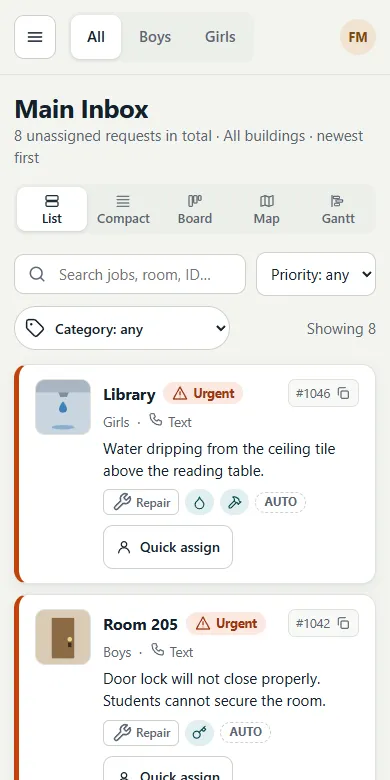
The Main Inbox is the shared list of new, unassigned work. Every manager who can see it works from the same list, so nothing gets lost in someone's phone. It is the first page of the web app for managers.
What a job shows#
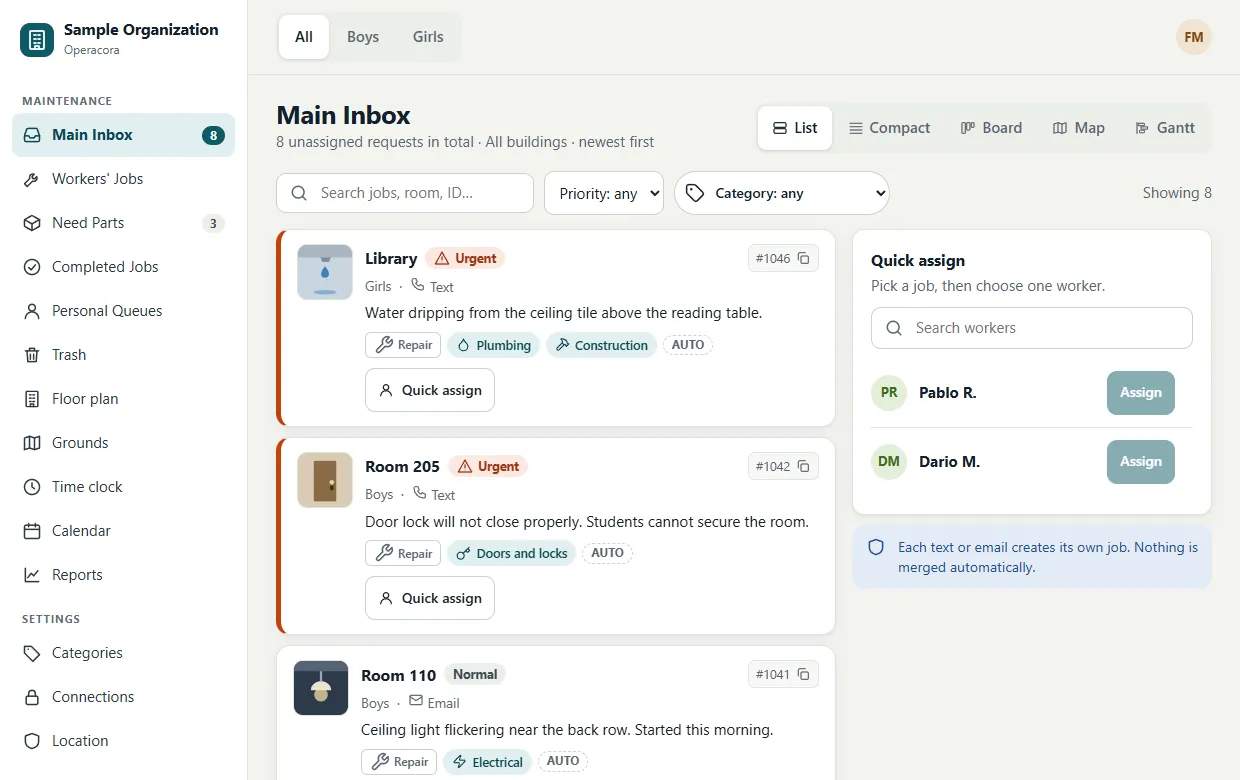
Each job in the list shows:
- the room and the building (place), and a small picture: the first photo sent with the request, or an icon for its category;
- its priority: Normal, Urgent or Emergency (see Priorities and emergencies);
- how it came in (for example App) and the start of the description;
- its type of work (Repair, Install / build, Project, Setup / move, Inspection, Request) and its categories. Tags marked AUTO were suggested from the words in the request; check them and change them if they are wrong;
- the job number, for example #1042. Click it to copy it.
At the top you can search by words, room or job number, and filter by priority and category. The switch at the very top (for example All · Boys · Girls) shows one building or all of them.
Where requests come from#
- The phone app. Anyone with an account can tap Report a problem. See Report a problem.
- Text messages and email to your organization's own number and address Coming. Each message will become its own job; nothing is merged automatically.
Every request becomes exactly one job. Operacora never merges two requests on its own, even if they look alike, so two people reporting the same leak make two jobs. Delete the extra one if you need to.
Open a job#
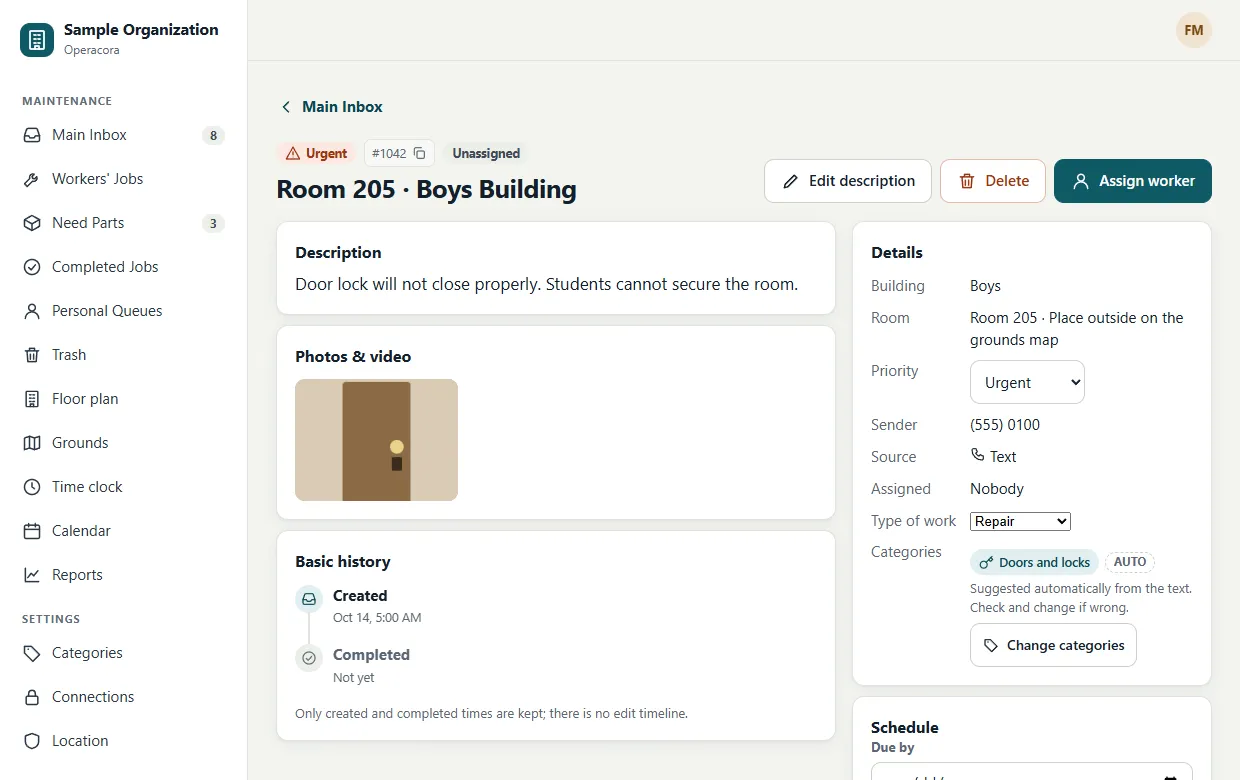
Click a job to open its page. A job always opens as a full page, with:
- the full description (managers can press Edit description), and every photo and video;
- Details: building, room, priority, sender, source, who it is assigned to, type of work and categories;
- Schedule: a due time and a planned start and end (see Gantt and Calendar);
- Basic history: when it was created and completed. Operacora keeps those two times, not a full edit timeline.
Assign a job#
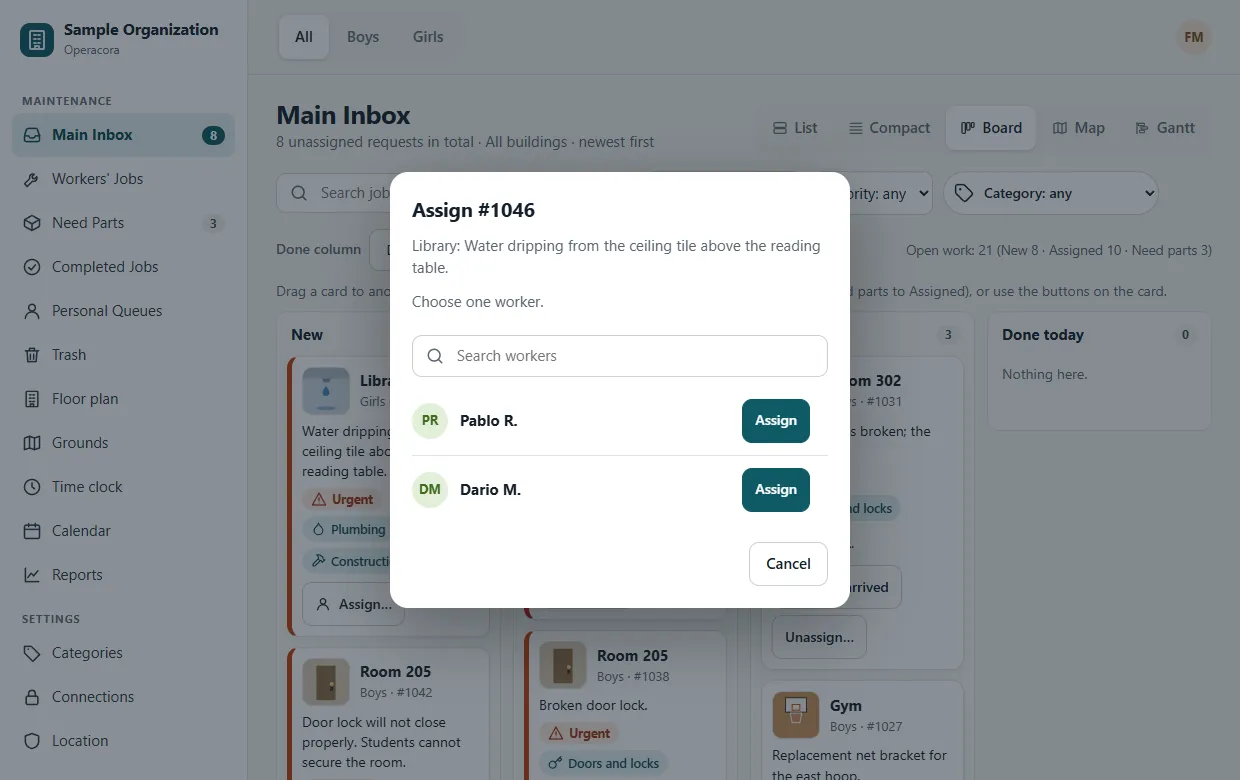
A job goes to one worker at a time. There are three ways to assign:
- Quick assign in the list: press Quick assign on a job, then Assign next to a worker in the Quick assign panel (beside the list on wide screens).
- From the job page: press Assign worker and choose one person.
- On the Board: drag a card from New to Assigned, or press its Assign… button. See Board.
The job appears in the worker's My Jobs on their phone the next time it refreshes, and it moves from the Main Inbox to Workers' Jobs. Push notifications to phones are Coming.
Change who is doing it#
To give a job to someone else, first press Unassign on the job page. It goes back to the Main Inbox, unassigned. Then assign it to the new person. This "unassign first" rule makes sure two people are never working on the same job by mistake.
To assign several jobs at once, tick them and use the bar at the bottom. You will see how many went through and which were skipped, and most actions can be undone. See Views for dragging cards on the board.
Follow up#
- Workers' Jobs shows everything that is with a worker, including jobs waiting for parts.
- Need Parts lists jobs a worker paused because something must be bought. Press Parts arrived when it comes in. See Need Parts.
- Completed Jobs keeps every finished job with its photo proof. If the work is not right, press Reopen on the job page: it goes back to the Main Inbox, unassigned, and the earlier completion stays on record.
- If a worker presses Can't Fix, the job comes back to the Main Inbox, unassigned, with their note and any photos.
Managers can also mark a job complete from the web app with Add completion photo and Mark complete, for example after checking it in person. A photo is still required.
Delete a job#
Press Delete on the job page. You are asked to confirm, and the job moves to Trash, where it can be restored. Deleting for good is a separate step with a second warning. See Trash.
On your phone#
Managers who sign in to the phone app get Today, Inbox and Map tabs. The Inbox is the Main Inbox, newest first, with emergencies and urgent jobs marked by an icon and a word. Open a job to see its photos, Assign to a worker, or Change priority. Making a job an emergency asks you to confirm first.