
Floor plans and room setup
See every open job as a pin in its room. Set up each floor from a PDF, an image or nothing at all, print room codes, and follow a suggested route.
On this page
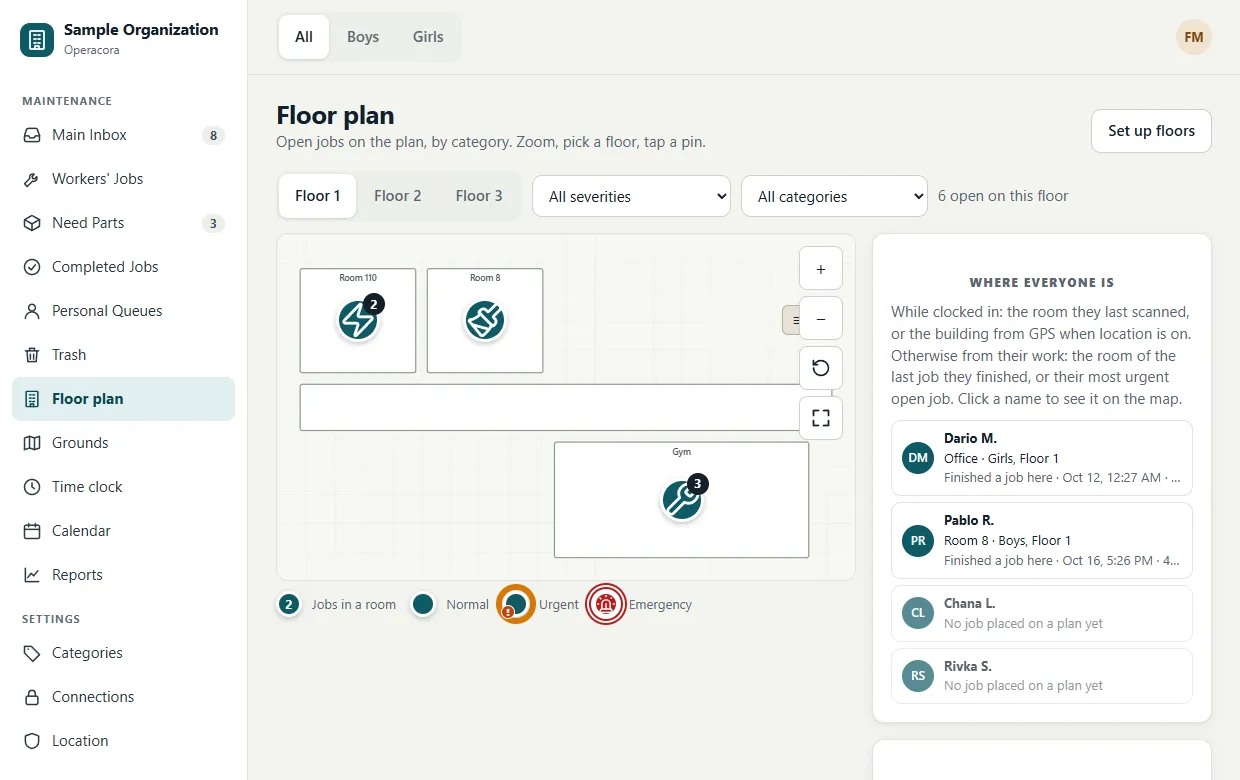
The Floor plan page shows your buildings' real plans with every open job as a pin in its room. Workers see it too, with only their own jobs.
Read the map#
- Pins show the job's category icon (a bolt for electrical, a drop for plumbing…). Several jobs in one room become one pin with a count.
- Severity: normal pins are plain, urgent pins have a glowing ring, emergency pins have an alarm icon and a flashing ring. See Priorities.
- Floors: switch with the tabs above the plan. The building switch at the top of the page picks the building.
- Filters: show only some severities or categories. The count beside them says how many jobs are open on this floor.
- Zoom with the + and − buttons, reset the view, or go full screen. Vector plans stay sharp at every zoom.
Click a pin to see the jobs in that room and open one. A job shows on the plan when it is linked to one of the floor's confirmed rooms. Choosing the room for a job from its page is Coming.
Set up a floor#
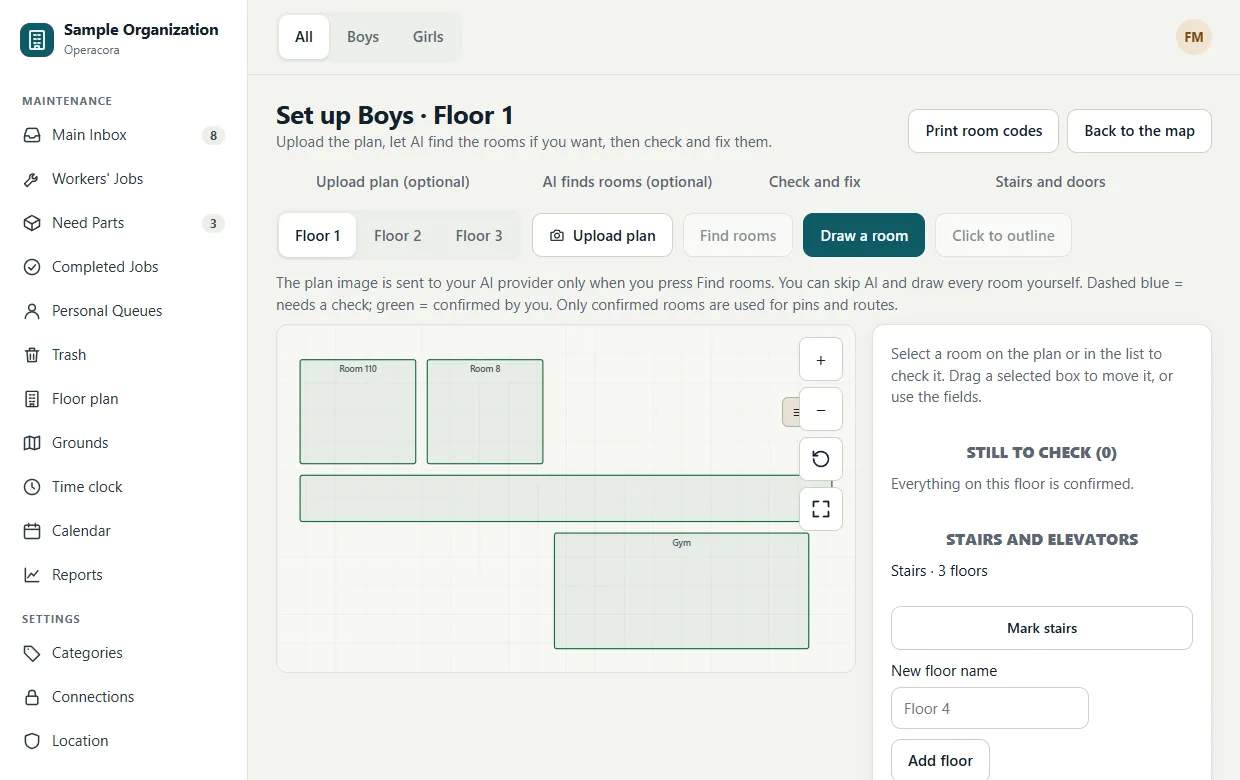
Press Set up floors on the Floor plan page. Setup has four steps, shown across the top: Upload plan (optional), AI finds rooms (optional), Check and fix, and Stairs and doors.
Add floors#
Type a name under New floor name (for example "Floor 2" or "Basement") and press Add floor.
Upload the plan (optional)#
Press Upload plan and choose:
- A PDF. Pick the page, and trim the margins and title block so only the drawing is left. The original PDF is kept unchanged; a sharp picture is made from it in your browser.
- An image (JPEG, PNG or WebP), such as a photo or scan of a plan.
- A vector drawing (SVG), which stays crisp at any zoom. If you have architect's PDFs, we can turn them into vector drawings for you.
No plan? Skip this step and draw the rooms as boxes on a blank grid. Pins and routes work the same.
Mark the rooms#
- Draw a room: drag a box over the room on the plan, then give it the name people use ("Room 205", "Gym") and say what kind of room it is.
- Click to outline: click inside a room whose walls are closed and Operacora traces its outline for you, closing small gaps like doorways. For open areas, draw a box instead.
- Find rooms: lets AI read the room labels on the plan and draw drafts. It uses your organization's own AI account and sends the plan only when you press the button. This is Coming; until then, draw the rooms or use Click to outline.
Check and fix#
Select a room on the plan or in the list, check its name and outline, drag it to move it, and press Confirm. Only confirmed rooms get pins and appear in routes, so a draft can never put a job in the wrong place.
Stairs and doors#
Press Mark stairs to place staircases and elevators. They join the floors of a building, so the suggested route knows how to get from one floor to the next.
Room codes#
Each confirmed room can have a printed code (a QR code) by its door. Workers scan it with the phone app to check in to that room while they are clocked in. That tells managers exactly where they are, and only when they choose to scan.
- In floor setup, pick the floor and press Print room codes.
- Press Print. Each code is labelled with the room name and "Scan with the Operacora app to check in".
- Stick each code by its room's door, at a height people can reach.
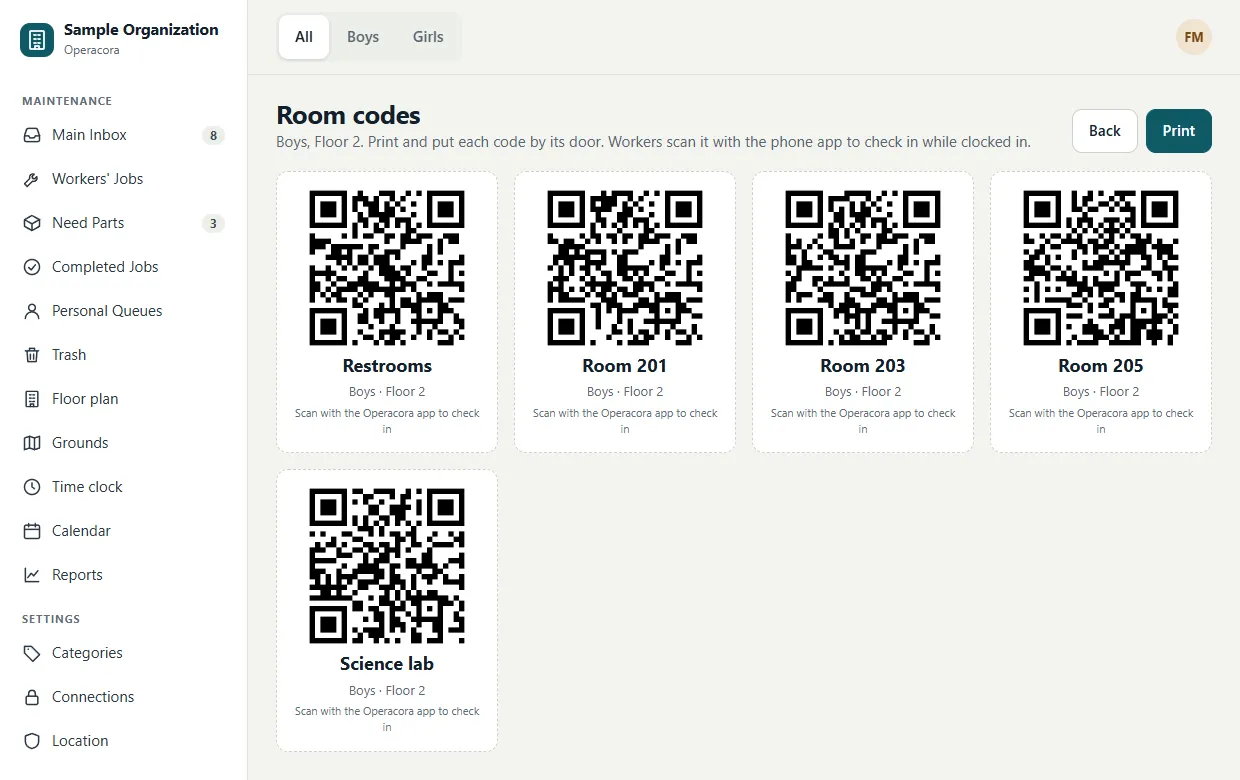
If someone scans a code with an ordinary camera app, they land on a short page that tells them to scan it from the Operacora app instead. See Scan a room code.
Suggested route#
Beside the plan, Suggested route puts a worker's open jobs in a sensible order: emergencies first, then urgent jobs, then nearby rooms together, then the next floor or building. Jobs not on a plan come last in their group.
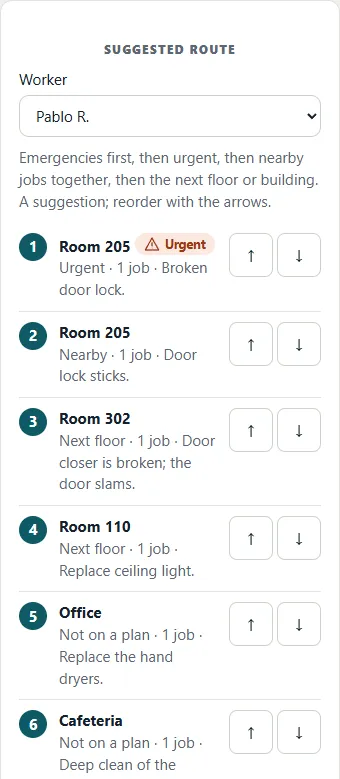
Choose the worker, then reorder stops with the arrow buttons if you know better. You can never move a normal job ahead of an urgent one. The reordered route is not saved yet; press Refresh to start again. Workers see their own route as "Suggested route for you".
Where everyone is#
Managers also get a Where everyone is list on this page. See Where everyone is.