
Time clock and timesheets
See who is clocked in, check each week's hours, fix mistakes with a reason, answer fix requests, approve timesheets and export hours.
On this page
Workers clock in and out on the phone app. Managers see and manage those hours on the Time clock page of the web app, for themselves and the people ranked below them, never their peers.
The page has five tabs: Today, Week, Month, Requests and Timesheets.
Today#
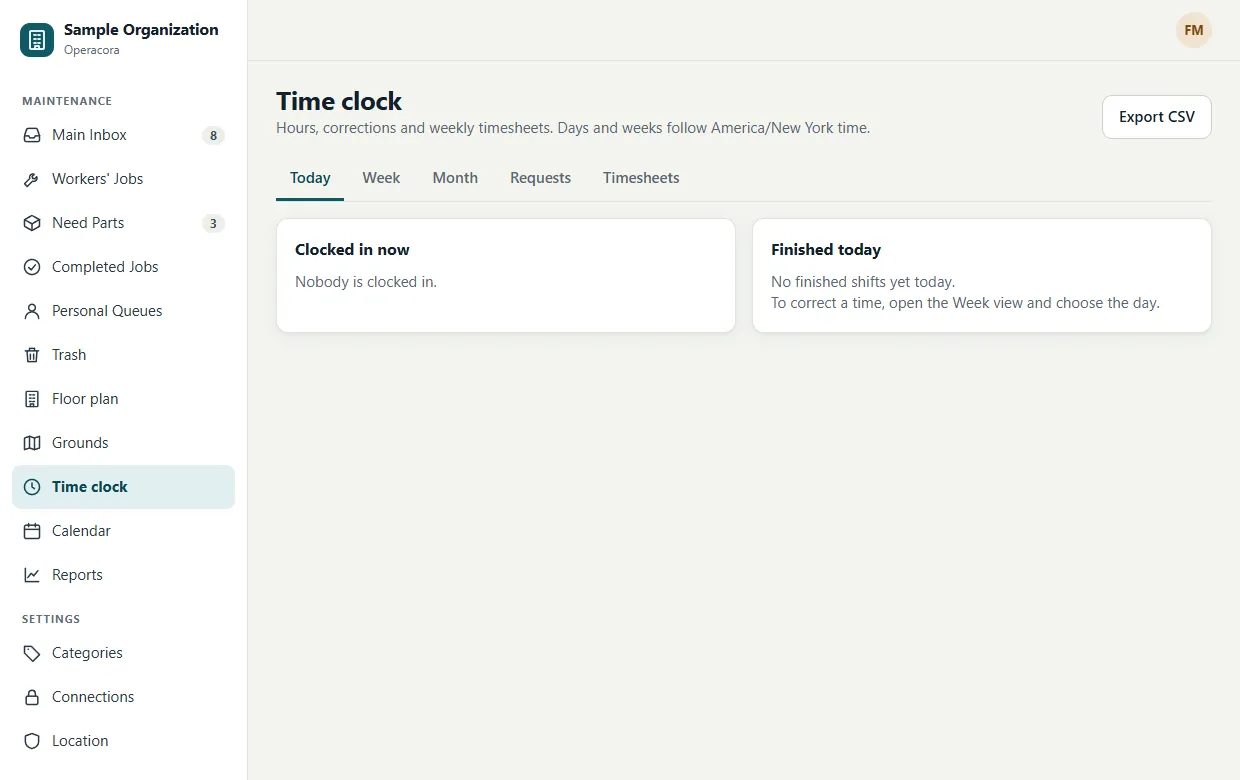
Who is Clocked in now and since when, and who has Finished today.
Week#
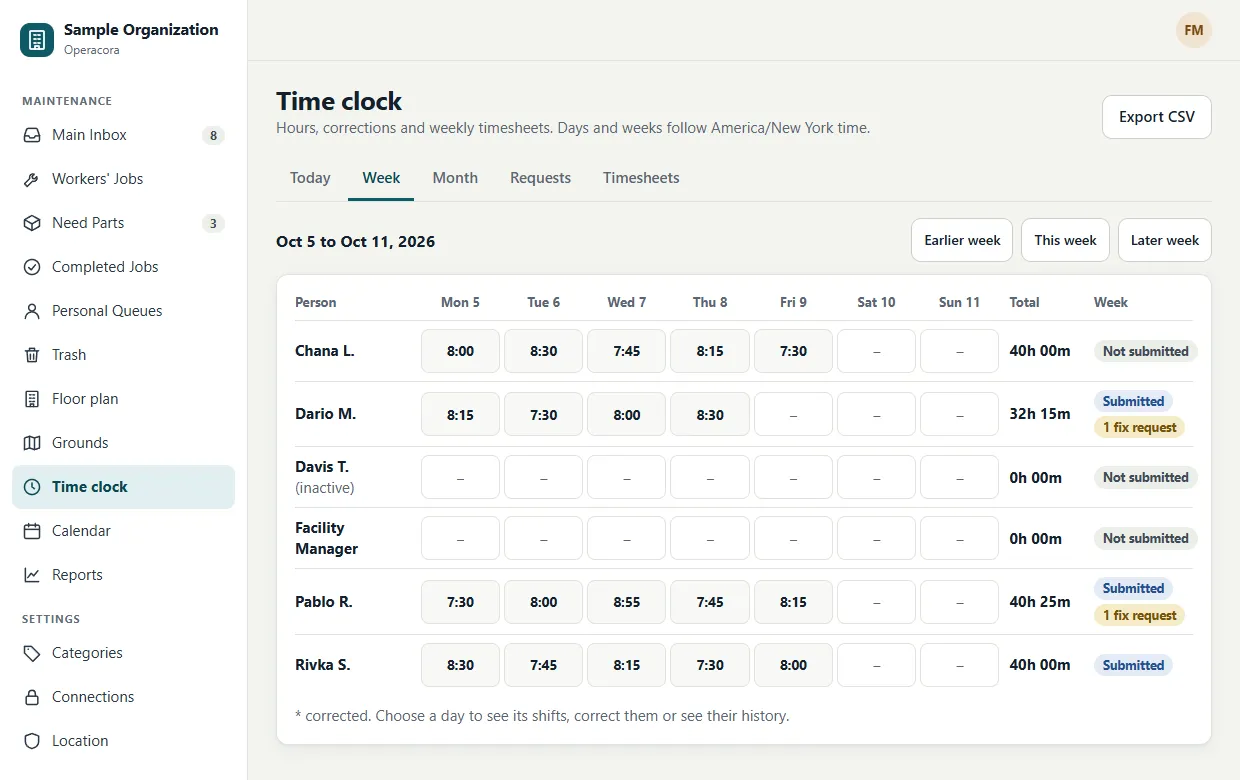
A grid with one row per person and one column per day (Monday to Sunday), each person's week total, and the week's status: Not submitted, Submitted, Approved or Sent back. Corrected days have a mark. Move with Earlier week, This week and Later week.
Fix a mistake#
Choose a day in the grid to see its shifts. For each shift you can:
- Correct the start or end, for example when someone forgot to clock out. Setting the end of a shift that is still open closes it.
- Add a shift that was never clocked.
- Delete a shift that should not count (an open shift can't be deleted; set its end instead).
- See its History: every change, oldest first, with who made it, when, and why.
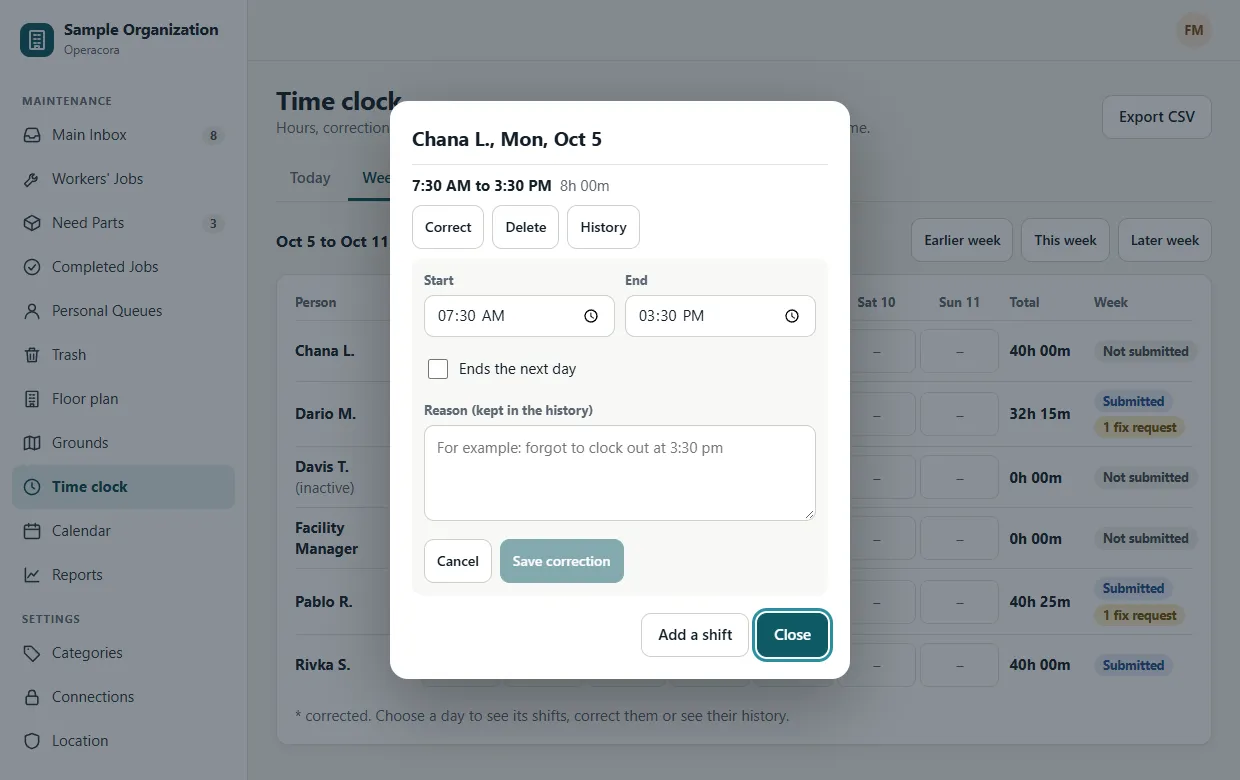
Every change needs a reason (a few words is enough), and Operacora checks that the end is after the start, the shift is at most 24 hours, it is not in the future, and it doesn't overlap another shift of the same person.
Nothing is changed silently. Each correction, added or deleted shift, and decision is recorded with the time before and after, who did it and why. The record can't be edited or removed, and deleted shifts are kept (they just stop counting).
Who can change time#
- Only a manager ranked above the person can change or approve their time.
- You can't change your own time; a manager above you does. Everyone can see their own hours and history.
- Peers never see each other's time.
Month#
Each person's hours per day for a whole month, with month totals. Choose a day to open its week, where shifts can be corrected.
Requests#
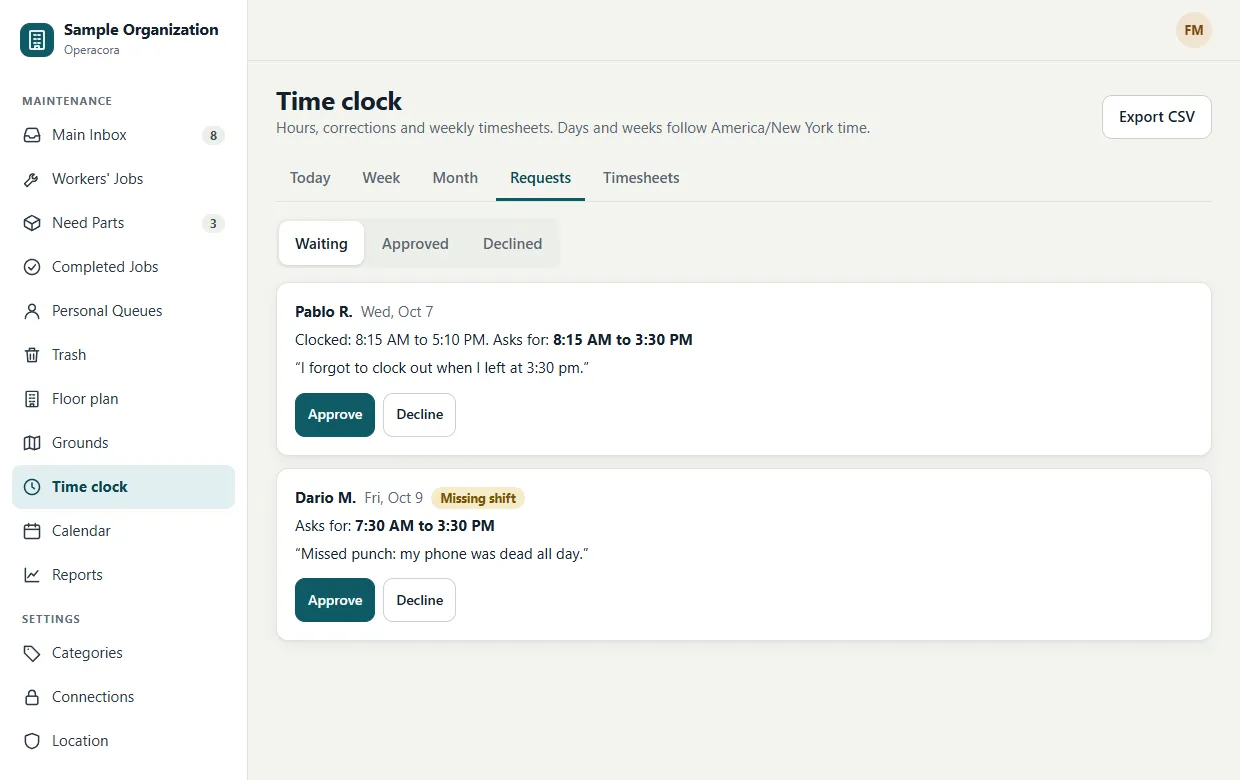
Workers can ask for a fix from the phone (My hours › Request a fix), or ask to add a shift they missed. Their requests show here with the proposed times and their reason.
- Approve: the change is made and recorded.
- Decline: give a reason; the person sees it on their phone.
Each shift can have one waiting request at a time. Choose which requests to show: waiting, approved or declined.
Timesheets#
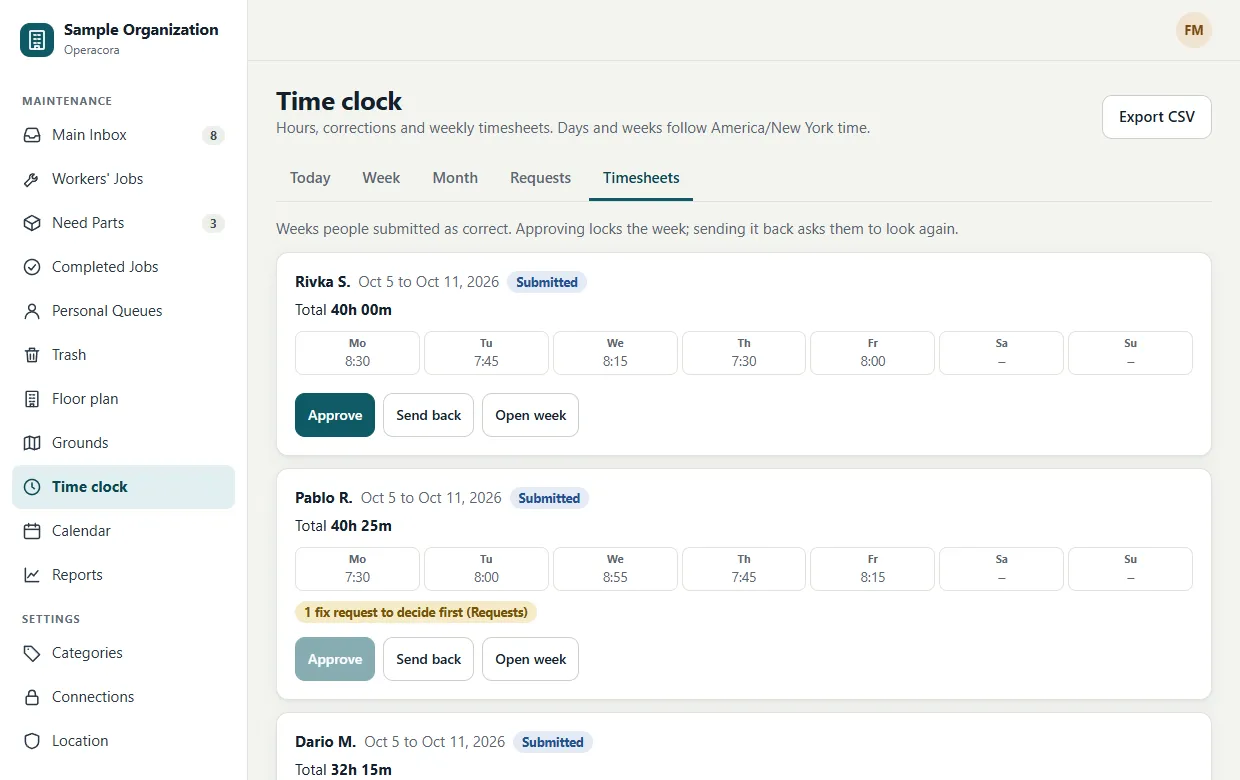
When a week is over, each worker presses Submit my week on the phone. Submitted weeks appear here.
- Approve locks the week: no more corrections, added shifts or requests for it.
- Send back with a note; the person fixes or asks, then submits again.
- A week with a fix request still waiting can't be approved. Decide the request first.
- To change an approved week, a top-level manager presses Reopen week and gives a reason.
Export hours#
Press Export CSV, choose the dates (up to 62 days) and download. The file has one row per shift: person, date, start, end, minutes, whether it was edited, and whether the week is approved, in your organization's time zone. It never includes location.
Good to know#
- Weeks run Monday to Sunday in your organization's time zone. A shift counts on the day it started, even overnight.
- Totals are plain worked minutes. Overtime, breaks and pay rules are not calculated.
- Top-level managers have nobody above them, so their own fix requests and weeks can't be decided in the app yet.
- Time records are kept; only location records are deleted after the period you set.