
Display: start page, views and theme
Choose light or dark, where the web app opens, and how each job page opens for you on this device.
On this page
Display sets how the web app looks and opens for you. Open it from the link under your name in the menu. Your choices are saved in this browser on this device, so your phone's browser and your computer can be set differently.
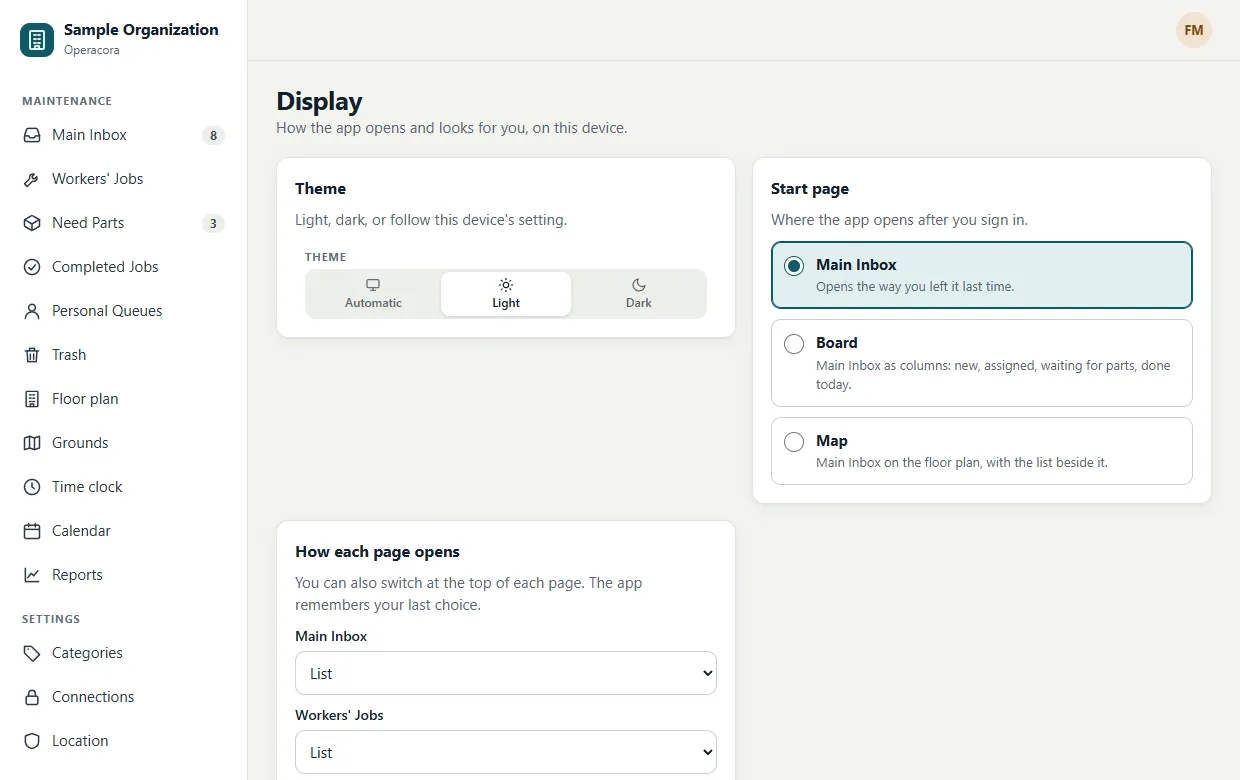
Theme#
Choose Light, Dark, or Automatic, which follows your device's light or dark setting. Every page is designed and checked in both.
Start page#
Where the app opens after you sign in:
- Managers: Main Inbox (the way you left it), Board (the Main Inbox as columns), or Map (the Main Inbox on the floor plan, with the list beside it).
- Workers: My Jobs (most urgent first) or Floor plan (your jobs on the plan).
The start page applies when the app opens on its home address; a link to a particular page still opens that page.
How each page opens#
Managers can choose the view each list opens in: List, Compact, Board, Map or Gantt for the Main Inbox and Workers' Jobs; List or Compact for Need Parts and Completed Jobs. You can always switch at the top of the page, and the app remembers your last choice. See Views.
If your browser blocks this site from storing data (some private modes do), the app works normally but can't remember these choices.