
See Operacora in Google Calendar, Outlook or Apple Calendar
Make a private link once, add it to the calendar app you already use, and your jobs, shifts and events appear there and keep updating.
On this page
You can see your Operacora calendar inside the calendar app you already use, on your computer and your phone. It's a subscription: a private link your calendar app checks now and then. It is read-only, so changes are made in Operacora.
What it shows#
- Your own jobs (assigned to you or in your personal queue) that are due or planned, with the job number, room, building and a short title.
- Your organization's events: title, building and room.
- Your own time clock shifts.
- Managers can tick Include my team to add every job they can see and the shifts of the people they manage.
It never includes photos, notes, who sent a request, or phone numbers. It covers 60 days back and a year ahead.
Step 1: make your private link#
- In the web app, open Calendar.
- Find Subscribe in your calendar app and press Make my link.
- Press Copy. The full link is shown only this once, so add it to your calendar app now.
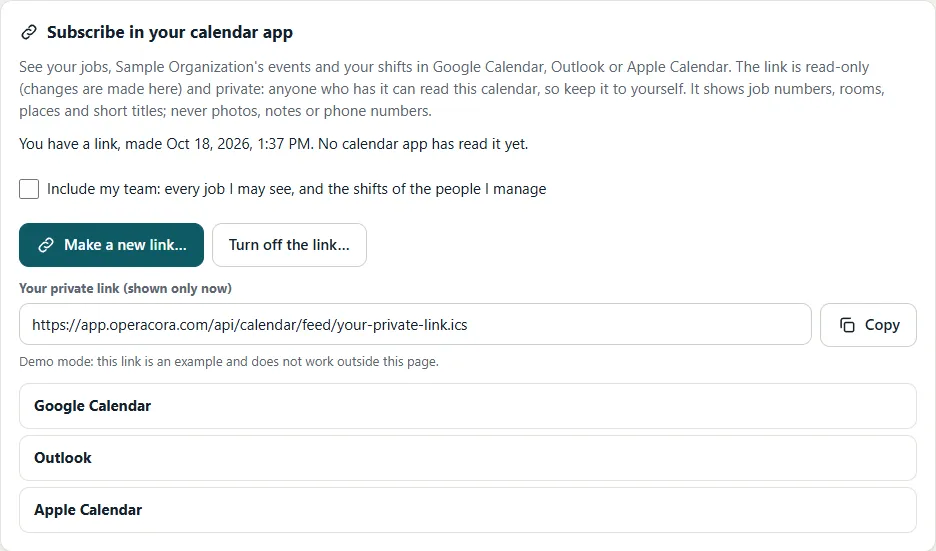
Keep the link to yourself. Anyone who has it can read that calendar. If you think someone else has it, press Make a new link…: the old link stops working at once.
Step 2: Google Calendar#
- On a computer, open Google Calendar. (Adding by link works on a computer; afterwards it shows on your phone too.)
- On the left, next to Other calendars, choose +, then From URL.
- Paste your link and choose Add calendar.
Google checks the link on its own schedule, usually every few hours, so changes are not instant. If it doesn't appear on your phone, open the Google Calendar app's settings, tap the new calendar, and turn on Sync.
Step 2: Outlook#
- In Outlook on the web or the new Outlook for Windows, open the calendar and choose Add calendar.
- Choose Subscribe from web.
- Paste your link, give it a name such as "Operacora", and choose Import.
Outlook refreshes subscribed calendars every few hours.
Step 2: Apple Calendar#
On a Mac#
- In Calendar, choose File, then New Calendar Subscription.
- Paste your link and choose Subscribe.
- Set Auto-refresh to Every hour and choose OK.
On an iPhone or iPad#
- Open Settings, then Calendar, then Accounts.
- Tap Add Account, then Other, then Add Subscribed Calendar.
- Paste your link, tap Next, then Save.
Change or stop it#
- Make a new link… replaces your link. Calendar apps using the old one stop updating until you give them the new one.
- Turn off the link… stops it for good.
- To remove it from your calendar app, delete or unsubscribe from the calendar there.
If you stop being a manager, "Include my team" stops including your team at once; the link is rechecked every time it is read.
Two-way sync, where Operacora jobs appear in your Google or Microsoft calendar within moments and moving them there moves them here, is Coming.