
Calendar and events
Jobs that are due or planned, events like closures and room bookings, and time clock shifts, by day, week, month or year.
The Calendar page puts time-based work in one place. Everyone in the organization can open it and sees what their rank allows; managers can also plan work and add events.
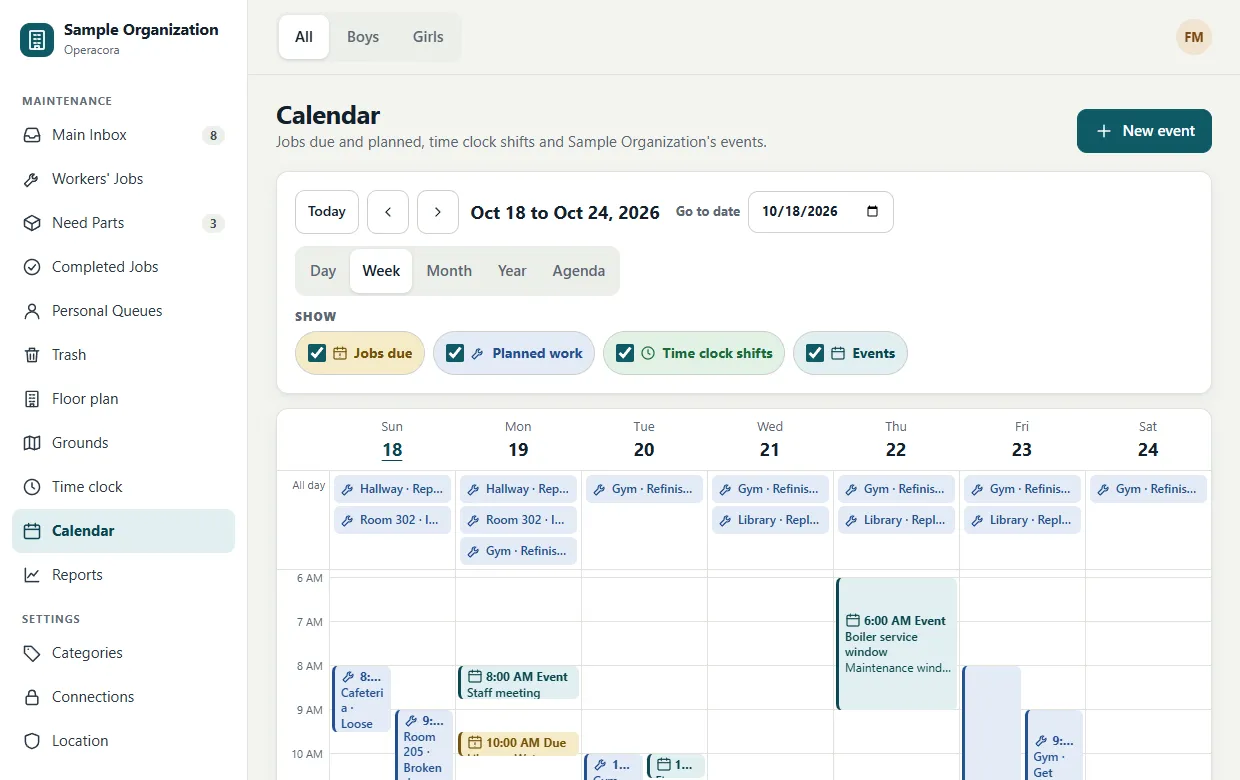
Views#
Choose Day, Week, Month, Year or Agenda (a simple list). Move with Today and the previous and next arrows, or jump with Go to date. On a phone, Week shows three days, and Month becomes a compact grid with the chosen day's list underneath. Your view is remembered in this browser.
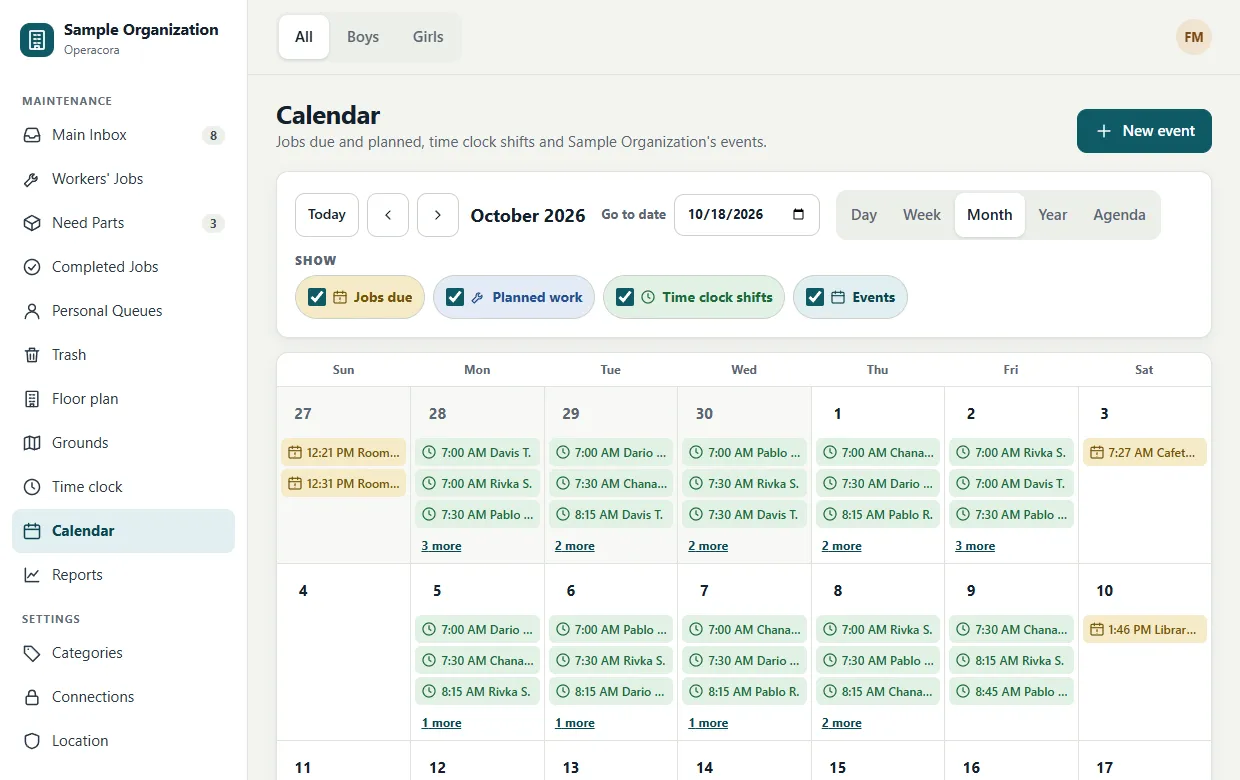
Layers#
Four layers can each be switched off. Each has its own icon and word, so they never depend on colour alone:
- Jobs due: jobs with a "due by" time.
- Planned work: jobs with a planned start and end.
- Time clock shifts: your own shifts; managers also see the shifts of people ranked below them.
- Events: closures, events, room bookings and maintenance windows.
The building switch at the top filters the calendar. Events for every building and shifts always show.
Plan and move work#
Give a job a time on its page, under Schedule: a Due by time, and a planned start and end. Managers can then move it on the calendar:
- In Day or Week, drag a planned job to move it, or drag its bottom edge to change when it ends (in 15-minute steps).
- With the keyboard, focus the job and press Alt + arrow keys to move it 15 minutes or a day; Alt + Shift + ↑/↓ changes its end.
- Completed jobs can't be moved.
If the job was changed by someone else meanwhile, the calendar refreshes and tells you, so no change is silently overwritten. The Gantt view is another way to plan.
Add an event#
Managers press New event and fill in:
- Title and Kind: closure, event, room booking, maintenance window or other;
- When: a start and end, or All day with a first and last day;
- Repeats: does not repeat, every day, every week or every month, ending never, on a date, or after a number of times;
- the building it is for (or every building), and Notes.
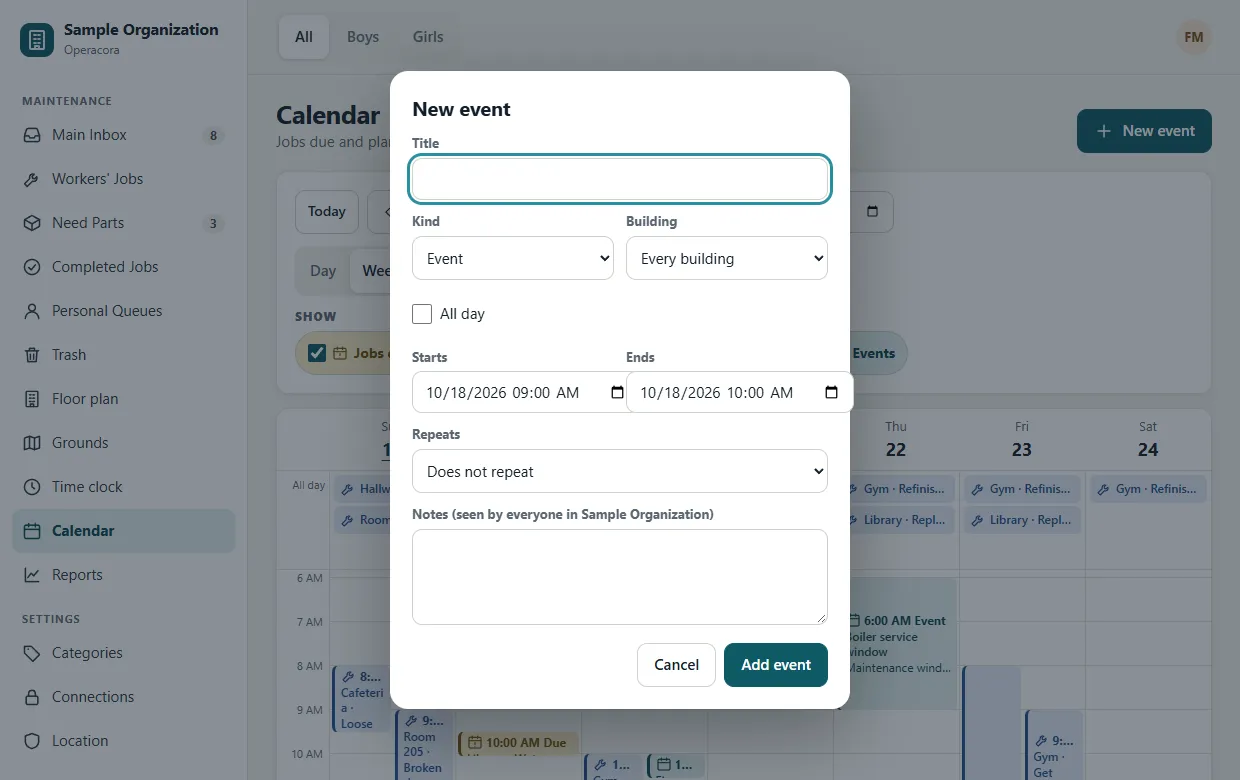
Everyone in the organization sees every event. Editing or deleting a repeating event changes the whole series. Changing just one date of a series is Coming.
See it in your own calendar app#
Each person can make a private link that shows their Operacora calendar in Google Calendar, Outlook or Apple Calendar. See Calendar subscriptions. Two-way sync with Google and Microsoft calendars is Coming.